
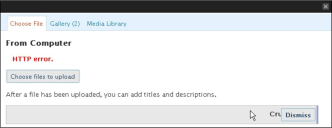
 Software and Computers and wonderful. That is, if they work. Unfortunately a lot of the stuff stops working after a while. For whatever reason. Today I am having a problem with WordPress – again. Somewhere in the back of my mind it lingers – haven’t I seen this type of problem before? I get an error message when I try to upload an image in WordPress. I am using WordPress 2.5 at the moment, but have seen many image upload errors mentioned all over the web for various WordPress versions. How to solve these upload problems?
Disclaimer: I am not a techie; I just follow the advice of others – but it worked for me!
Error Messages After Crunching:
“HTTP Error”
“An error occurred in the upload. Please try again later.”
[ad#openx300-250]
I am running several blogs, like WebsiteAndBusiness.com and AboutCoffeeAndTea.com, and they work just fine. On the same server, with the same version of WordPress. The problem had to be something rather site-specific.
Enter the .htaccess file.
The .htaccess file is used to allow for customized server behaviour in the directory that the file is placed in. When it is placed in the root of the site (the highest hierarchical level; just like C:\ is the root on your computer) it governs the whole site.
Encounter problems uploading images?
My tech person suggested this solution to my problem:
Ingredients:

- Text editor such as NotePad
- FTP program to upload the created/changed .htaccess file
Steps:
- Download the current .htaccess file from your website (in my case it is in the public_html directory)
- It is always recommended to keep a copy of this file somewhere safe, so you can fall back on it if this fix does not work.
- If there is none – create one yourself, using NotePad or other plain text editor
Just create a new file and name it .htaccess (yes, with the dot in front).- NOTE: set the file type as “All files, though, otherwise it may be saved as a .txt file (.htaccess.txt), and then the file will not work as intended…
- Enter this code into the .htaccess file:
<IfModule mod_security.c><Files async-upload.php>
SecFilterEngine Off
SecFilterScanPOST Off
</Files>
</IfModule>
- NOTE: make sure you add this code outside the # BEGIN WordPress and # END WordPress sections of the .htaccess file, or WordPress will rewrite your file again, which means you will loose all your adjustments :o(
- Save the file
- Upload the file back onto your web server
- Try uploading an image to your blog
> it should work now! It did for me :o)
Always Check With A Professional
I did check with my tech support gal Sheri, and she reassured me:
Turning off the security filtering should not cause you a problem as long as you control who is posting to your site.
Resources:
- Of course – a plugin that can insert the code into the .htaccess file for you!
- An article on the subject from WordPress support

UPDATE:
Today the same problem occurred, on a website I thought I fixed: http://www.aboutcoffeeandtea.com. But then I realized that I had changed the permalink structure on that site. This resulted in a whole new .htaccess, which no longer had the above-mentioned changes in them.
So, I added the code to the new .htaccess file, and everything is working again :o)